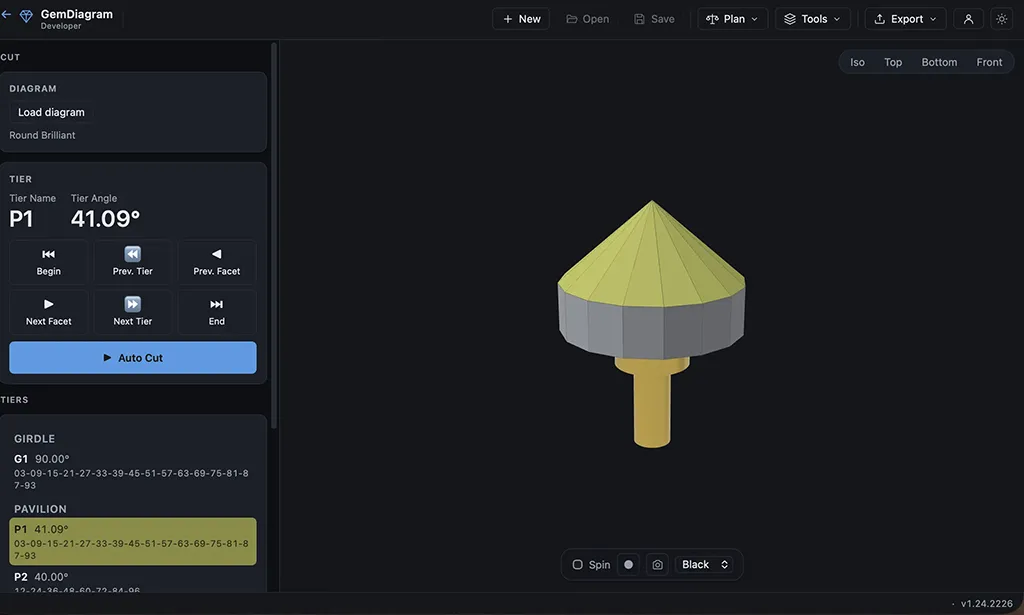
A tier-by-tier checklist that walks you through the cutting sequence at the machine. Mark each facet done as you go, track progress, and never lose your place mid-stone. Auto-cut (Pro) takes it further and drives the sequence for you.
A faceting diagram tells you the angles. It doesn't tell you what to cut next, or which facet you already finished twenty minutes ago when the dop got bumped and you lost your place.
How it works
Cutting Assistant turns any design into a tier-by-tier checklist you follow at the machine. Mark each facet done as you complete it, and the sequence keeps your place even if you step away mid-stone. Need the angle setup, a cone-angle check, or a polishing reminder? It's right there at the step you're on. Works with any design — your own Gem Designer creations, an uploaded diagram, or one of GemDiagram's pre-loaded gems. Pro plans add auto-cut, which drives the full sequence for you instead of stepping through it by hand.
Who it's for
Cutters who want a repeatable process at the bench, especially on complex designs with dozens of facets where losing your place costs real material.
Explore more
Studio
Gem Designer
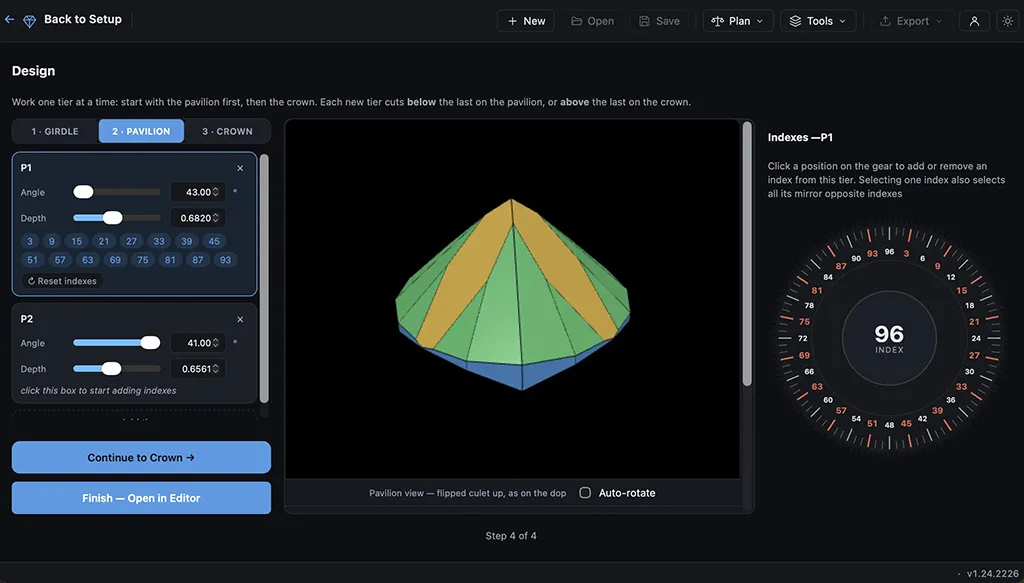
Build a cut from scratch instead of starting from a template. Set angles, distances, and index positions tier by tier, with a live 3D preview that updates as you design — the same engine behind every pre-loaded gem, now in your hands.
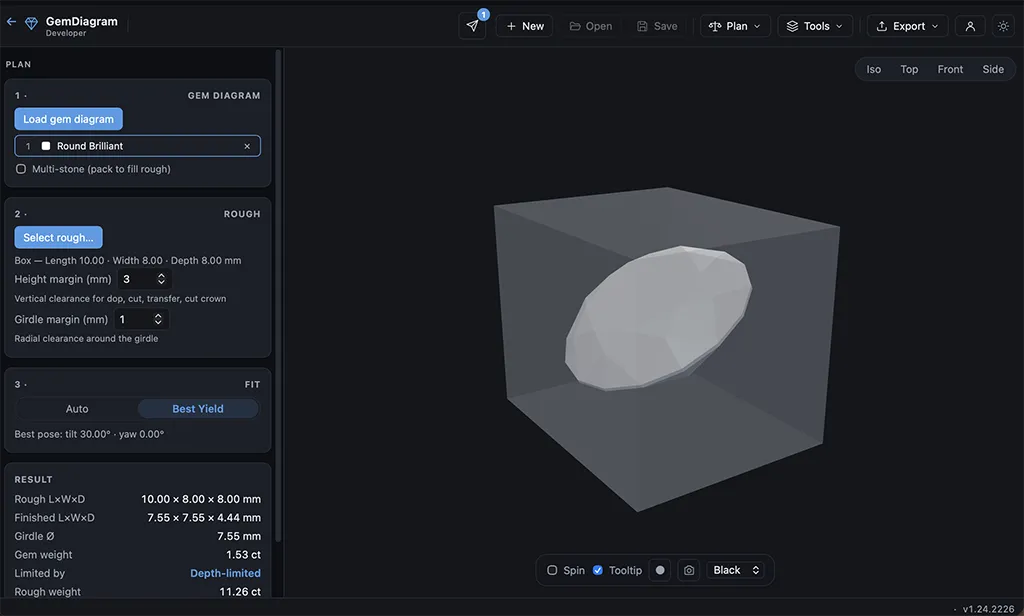
Find the best orientation to cut a given piece of rough before you touch the dop. Enter the rough's dimensions and material, then let Auto, Tilt-search, or Manual modes estimate yield and finished weight — cut with confidence, not guesswork.