Build a cut from scratch instead of starting from a template. Set angles, distances, and index positions tier by tier, with a live 3D preview that updates as you design — the same engine behind every pre-loaded gem, now in your hands.
Most faceting tools start you from a template. If you want to design an original cut — not just render someone else's library diagram — you're stuck hand-calculating angles in a spreadsheet, then redrawing them in CAD software that has nothing to do with gemology.
How it works
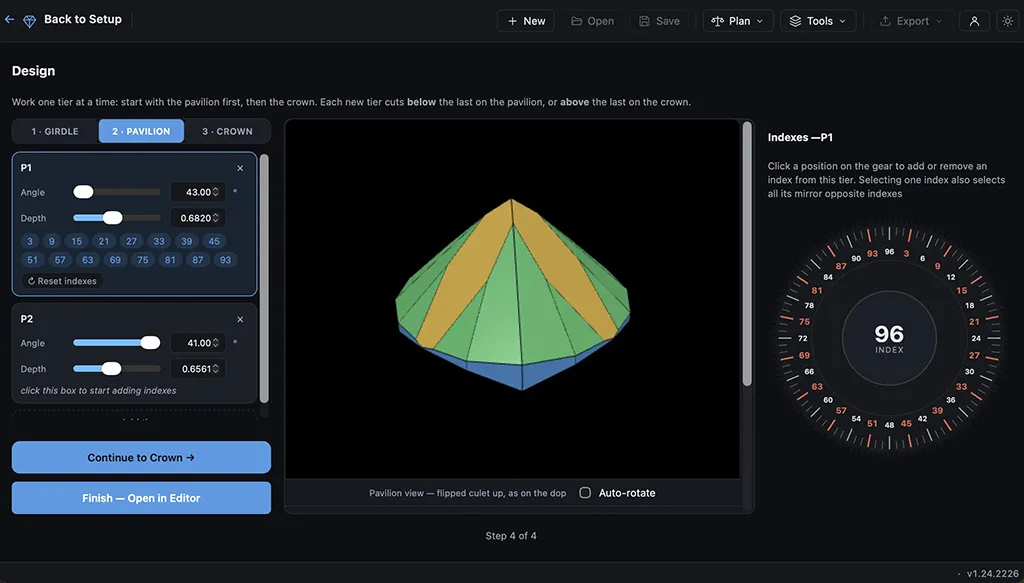
Gem Designer puts you in the same tier-based system that drives every one of GemDiagram's pre-loaded gems. Add a tier, set its angle and cut distance, place it at any of the wheel's 96 index positions, and watch the 3D preview update immediately in Solid or Realistic mode. Build the pavilion, crown, and girdle independently, check proportions and yield before you touch a single facet on the actual stone, then save your work as a .facet file and hand it straight to Cutting Assistant when you're ready to cut.
Who it's for
Designers and professional cutters creating original cuts for clients, competitions, or a signature house style — not just executing someone else's diagram. Available on the Studio plan and above.
Explore more
Studio
Cutting Assistant (no auto-cut)
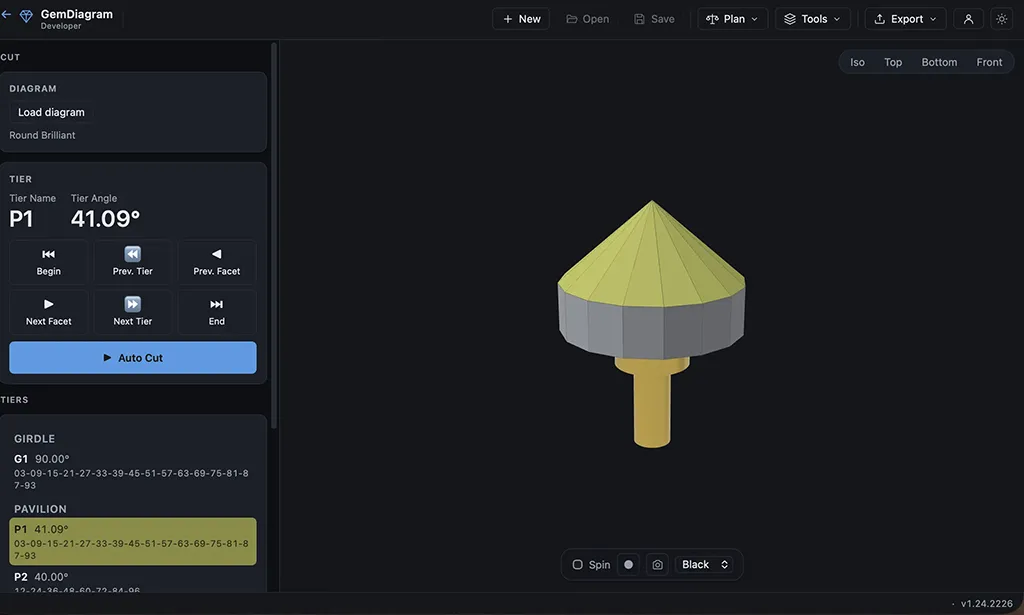
A tier-by-tier checklist that walks you through the cutting sequence at the machine. Mark each facet done as you go, track progress, and never lose your place mid-stone. Auto-cut (Pro) takes it further and drives the sequence for you.
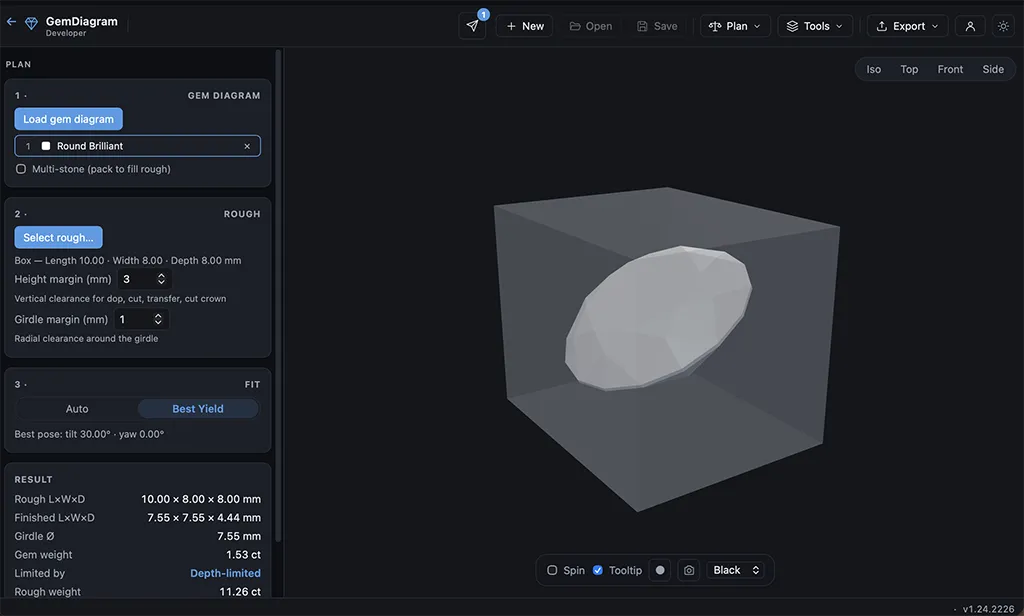
Find the best orientation to cut a given piece of rough before you touch the dop. Enter the rough's dimensions and material, then let Auto, Tilt-search, or Manual modes estimate yield and finished weight — cut with confidence, not guesswork.